What is the cart drawer? #
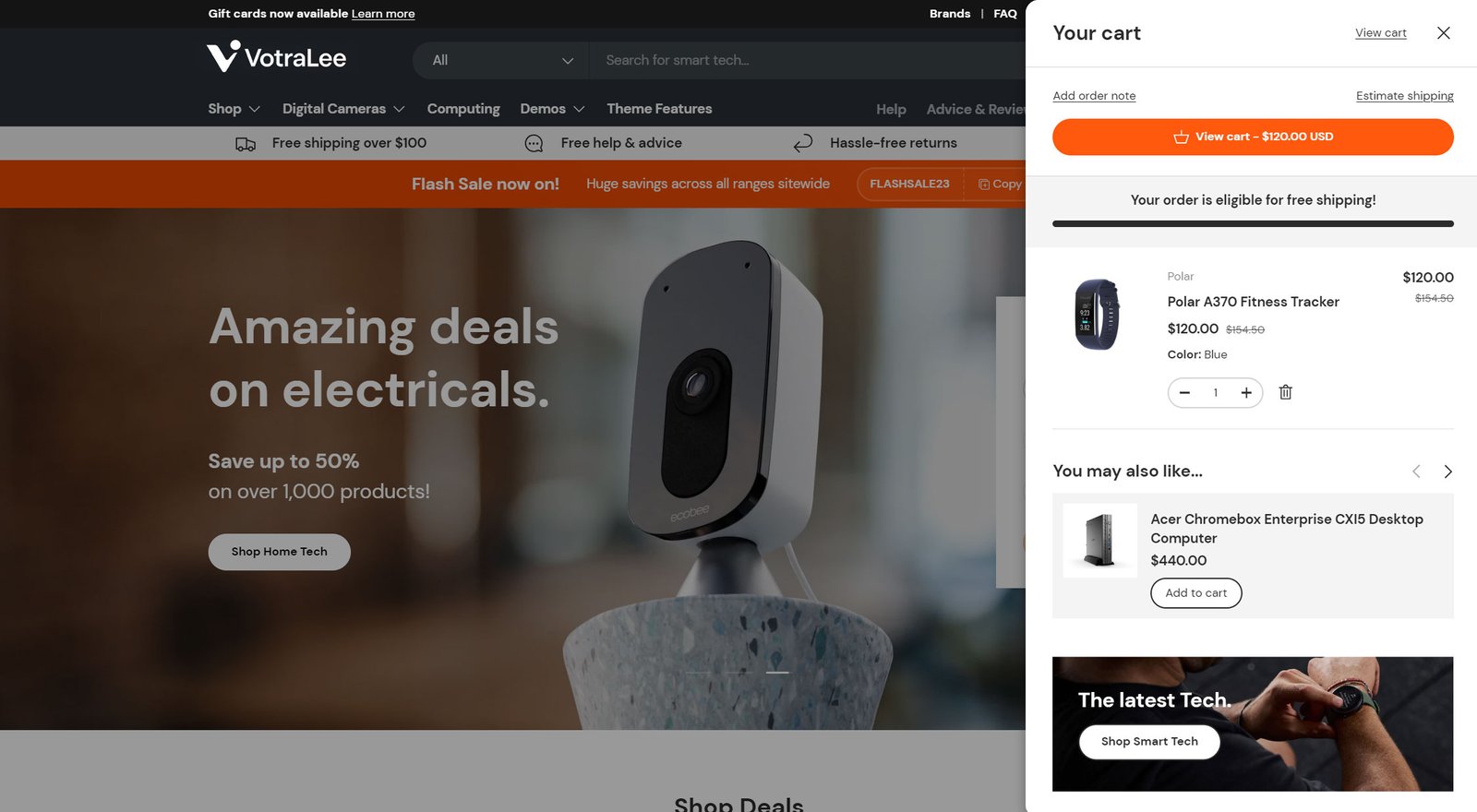
The Cart drawer is a convenient additional cart experience that allows customers to view and manage their shopping cart without leaving the current page. When activated, it slides out and displays key cart information such as the selected products, quantities, discounts and total price among other items.
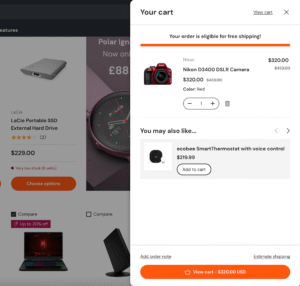
This allows customers to quickly review and make changes to their cart, enhancing the overall shopping experience.
The cart drawer in VotraLee also provides upselling and conversion focused features like a Free shipping bar, a promotional image or video, and the ability to show both products related to those already in the cart and also hand-picked promoted products.
How to set up the cart drawer #
The Cart drawer section can be found in the Overlay group area of the Theme editor.
Important
The cart drawer has settings in Theme settings > Cart. Refer to the Cart page guide for more.
Cart summary #
The Cart drawer has a number of controls for the cart summary. The cart summary shows the subtotal and the cart or checkout buttons plus options to show the order note, shipping/tax notice, terms and conditions link and shipping costs calculator.
The cart summary can either be positioned at the Top or the Bottom of the cart drawer. The drawer also offers some unique settings such as the Stick cart summary on scroll setting. The two main use cases for this setting are:
Enabled: The main button(s) remains fixed so that the customer always the option to view cart/checkout/use additional checkout options regardless of scrolling the list of products in the cart drawer.
Disabled: The main button(s) move with the content as you scroll. This option can be preferable if additional checkout buttons are shown, particularly if customers are using a number of different direct payment methods (Google pay, Apple pay, Shop pay etc.)
Important
When using the Terms and conditions link in the cart drawer, consider also adding the link on the cart page and/or disabling Show link to cart page in the cart drawer header to ensure customers can’t bypass this check.
Related products #
Related products are a great tool for cross-selling. These product recommendations change dynamically based on cart content. They can be shown in the Cart drawer and Cart page. Switch them on or off, and set the layout in Theme settings > Cart. Refer to the Cart page guide for more.
Promoted products #
Promoted products are useful for cross-store promotions and where there is a desire to highlight a specific product or push a specific range of products. Promoted products are different to related products in that the selection of products shown is fixed and does not change based on the specific items already in the cart.
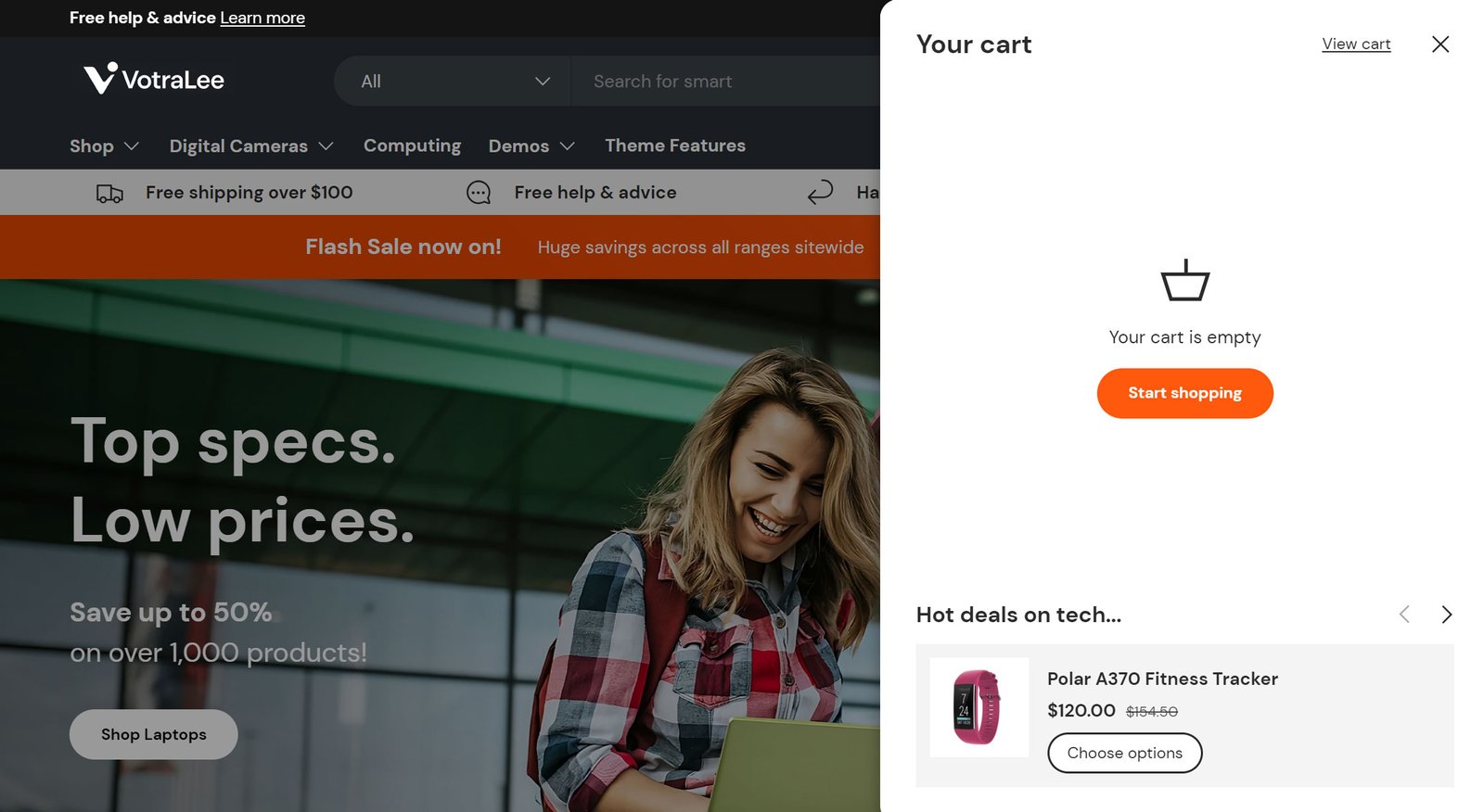
VotraLee provides some choices both on the presentation of Promoted products. Choose to display in an Empty cart, a Cart with items or Always. The Layout setting controls how the products will be displayed (carousel or list).
The ability to show products in an Empty cart drawer is another key difference when compared to related products. While it’s possible to show both related products and promoted products in the cart drawer at the same time, this could take up a lot of space; consider using only one or using promoted products in the empty cart drawer.
Note
A product won’t show in the promoted products if it is already in the cart or if it is unavailable and therefore can’t be purchased.
Media promotion #
Publicity is important, which is why this theme includes the option to add an image or video and text to the bottom the cart drawer using VotraLee’s Media promotion. Choose to Always show the advert or restrict it to an Empty cart, or a Cart with items. The theme includes a variety of settings to allow control of the Text size and Text alignment, Image height, Button style and more.