What is the collection list section? #
The collection list section provides the opportunity to promote specific collections on many areas of your store. It can be a very useful tool to showcase the variety of collections that are available to potential customers. It can be used to aid product discovery and may help to drive additional sales.
How to create a collection list section #
Steps
- Open the Theme editor
- Add a Collection list section.
- Click on Collection list to configure the Section header, Layout and Style settings for the section, such as the Card size, Color scheme and Grid or Carousel layout.
- Click on one of the existing blocks, click on Select collection and choose which collection to be shown. Click Select. The Collection blocks will align to the left of the page.
- Repeat this process until all the required collections have been added.
- Click Save.
- Refer to Theme Settings > Collection cards to browse other settings that are available to manage card layout and content, such as Image aspect ratio, Image fit and Text alignment.
How to create custom labels on collection cards #
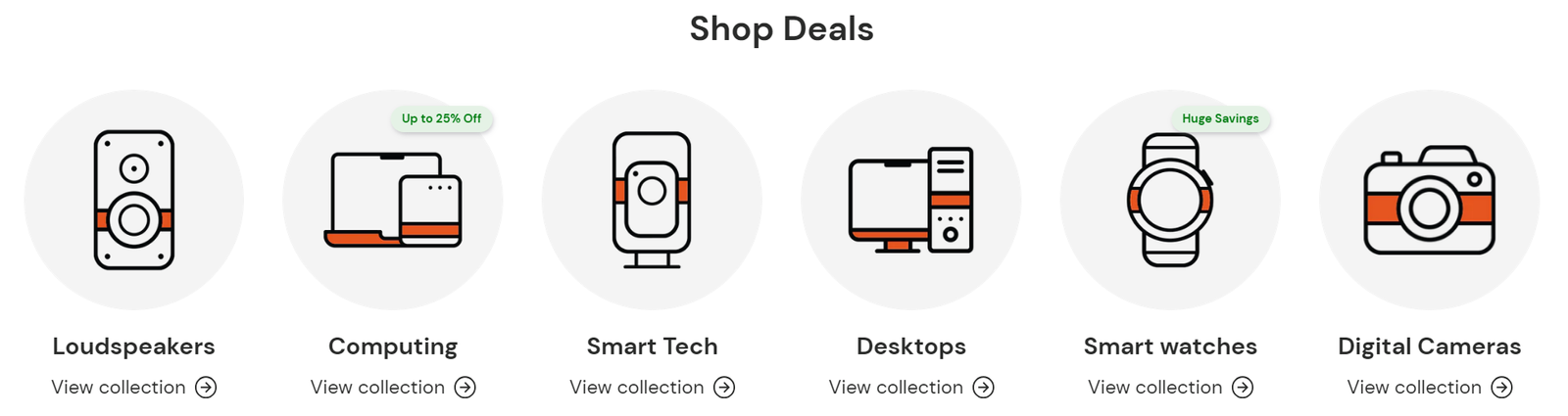
Custom labels can be shown on collection cards in versions after 1.6.0.
NoteThis is a more complex feature that require a base level understanding of how metafields work. For support on metafields, refer to Shopify Metafields guide.
Steps
- Open the Theme Editor.
- Ensure that a Collection list section is present and that the blocks below it have been assigned to a collection.
- Go to Theme settings > Collection cards > Labels and choose a Label color. This will be the default label color used unless a specific collection label color metafield is created.
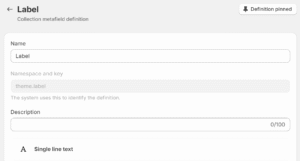
- In the Shopify admin area, create a ‘Single line text’ type Collection metafield with the namespace and key ‘theme.label’
- In the Shopify admin area, go to Products > Collections and find the collection that requires a label.
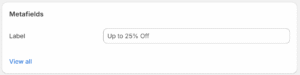
- Scroll down to the Metafields section and insert the required text in to the Label field.
- Hit Save
- Go back to the Theme editor and the new label should be now be attached to the required collection list section block.
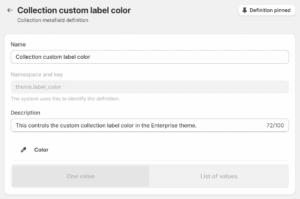
- If different collections require different label colors, in the Shopify admin area, create a Collection metafield with one value of type ‘Color’ using the namespace and key ‘theme.label_color’
- In the Shopify admin area, go to Products > Collections and find the collection that requires a different colored label. In the Metafields section, choose the required color in the Label color field.
- Hit Save
- Go back to the Theme editor and the new collection label should be now be the color chosen in the metafield.